

Slack
Connect CVEFeed.io to your Slack workspace to receive vulnerability alerts directly in a channel. When a new CVE is published for one of your subscribed products, a formatted message is posted with severity color coding, CVSS score, and direct links back to CVEFeed.io.
Tier requirement: Enterprise
Navigate to your project’s Slack Configuration page from the integrations section.
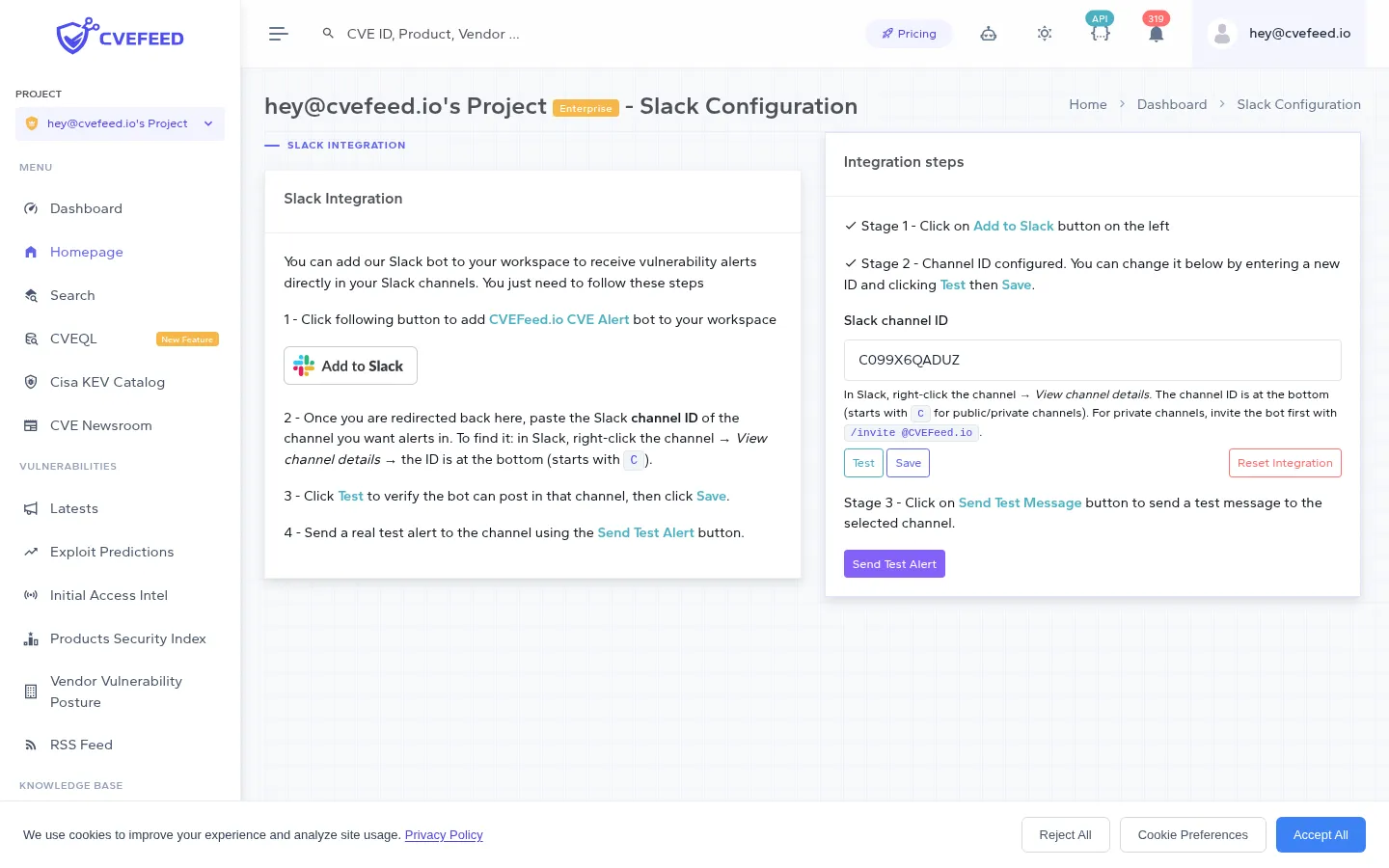
The setup follows three stages:
-
Click “Add to Slack” — this initiates the Slack OAuth flow. You’ll be redirected to Slack to authorize the CVEFeed.io bot in your workspace.
-
Enter the channel ID — after authorization, you’re redirected back to CVEFeed.io. Paste the Slack channel ID of the channel where alerts should be posted. To find it in Slack, right-click the channel → View channel details — the ID is at the bottom and starts with
C(for both public and private channels). For private channels, invite the bot first with/invite @CVEFeed.ioin that channel. Click Test to verify the bot can see the channel, then click Save to persist it. -
Send a test message — click Send Test Alert to verify the connection is working end-to-end. A sample alert will be posted to the saved channel.
Alert Message Format
Section titled “Alert Message Format”Slack alerts use rich Block Kit formatting:
- Header with the CVE ID and affected product name.
- Summary line restating the CVE ID and the affected product, followed by a short note that the CVE was linked to one of your subscribed products. The CVE description itself is not included — use the View CVE button to read it on CVEFeed.io.
- Fields table showing: Vendor, Product, CVE ID, CVSS Score, Severity, Published Date.
- Action buttons: “View CVE”, “View Product”, “Go to Alerts” — each linking back to CVEFeed.io.
- Color-coded by severity: purple for critical, red for high, amber for medium, teal for low.
Ransomware-linked CVEs get a distinct alert: deep red coloring regardless of severity, a Ransomware / Known field in place of the published date, and a message emphasizing that CISA has confirmed known ransomware campaign usage.
Disconnecting
Section titled “Disconnecting”To disconnect Slack, click Reset Integration on the configuration page. This removes the bot connection and stops all Slack notifications for the project.