
Subscriptions
A product subscription links your project to a specific software product from the CPE dictionary. When a new CVE is published that affects a subscribed product, CVEFeed.io creates an alert and delivers it through your configured notification channels.
Subscriptions are managed through the Tech Stack Management page within each project. This is where you build an inventory of the software your organization relies on.
Adding Subscriptions
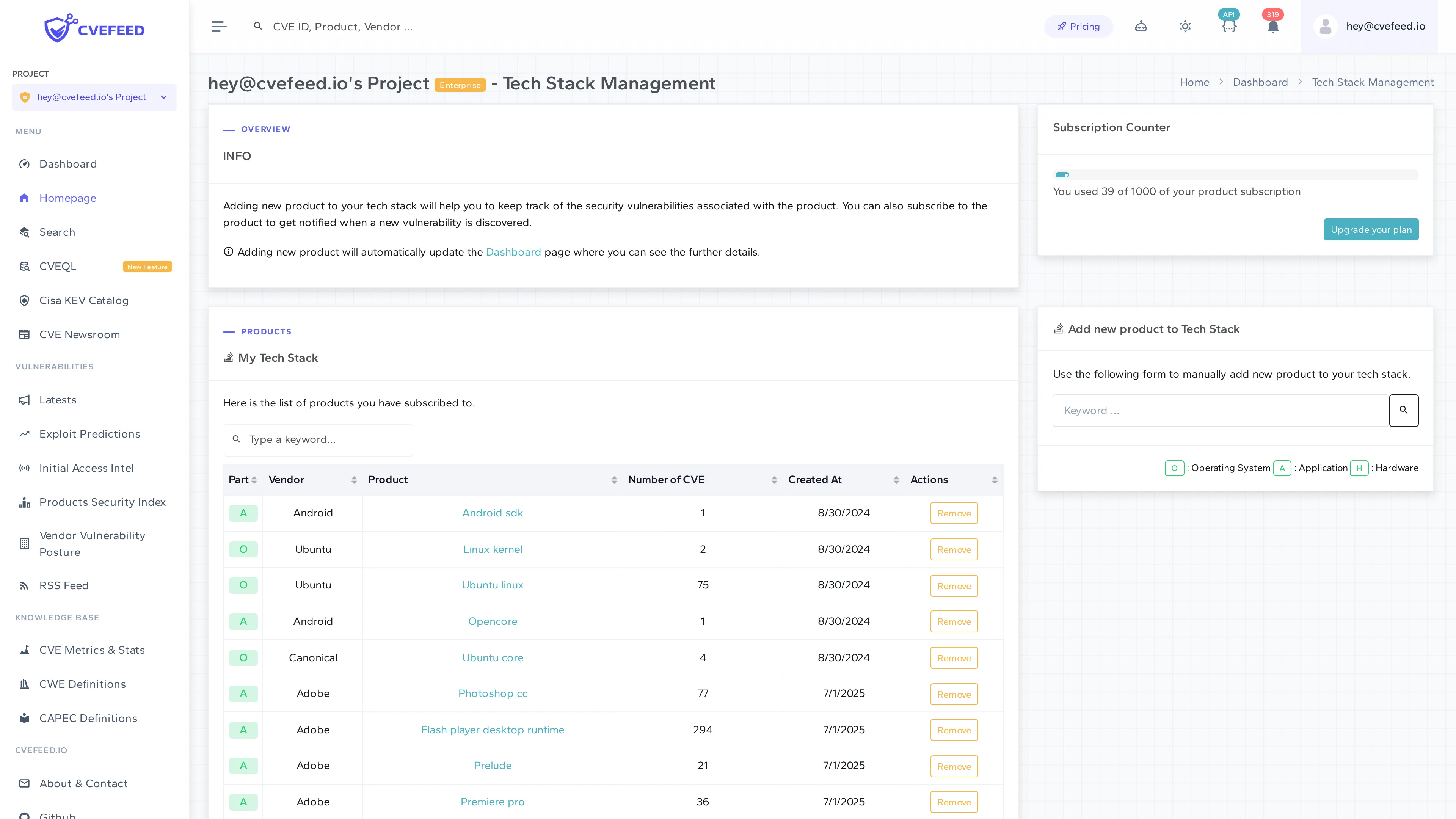
Section titled “Adding Subscriptions”Open the user menu in the top-right corner of the top bar and choose Tech Stack Management — or, on your Project Dashboard, click Manage tech stack on the Products Monitored card. The page shows your current subscriptions in the My Tech Stack table, along with the Add new product to Tech Stack form.
To subscribe:
- Use the Add new product to Tech Stack form on the right side of the page.
- Enter a keyword to search by vendor or product name (e.g., “apache”, “linux”, “adobe”), then press Enter or click the magnifier. The search only fires once the keyword is longer than two characters.
- Each result carries a badge — O for Operating System, A for Application, or H for Hardware, as decoded by the legend at the foot of the card — plus a count of the CVEs already recorded against that entry. Use both to pick the right row when the same name appears under more than one vendor or type.
- Click Add on that row. The button reads Remove instead when the project is already subscribed to that product.
The button switches to Added and the Subscription Counter updates straight away. The My Tech Stack table is loaded once when the page opens, so reload the page to see the new row. The table shows the type badge, vendor, product name, number of associated CVEs, and the date you subscribed.
How Subscriptions Trigger Alerts
Section titled “How Subscriptions Trigger Alerts”When a new CVE is published and linked to a product, CVEFeed.io checks all product subscriptions across every project that monitors the affected product. For each matching subscription, an alert is created (deduplicated by project + vulnerability + product, so you never get duplicates). This triggers the notification pipeline — delivering alerts via email, webhook, Slack, and Jira based on your configured channels.
Subscription Limits
Section titled “Subscription Limits”Product subscriptions are not counted per project. They are counted across all projects owned by the same user and checked against a single tier limit. This is an important distinction when you own multiple projects.
For example, consider a user on the Starter tier (20 subscriptions, up to 3 projects):
Owner: alice (Starter tier)Subscription limit: 20 total across all owned projects
├── Project "Backend Services"│   ├── apache / http_server│   ├── linux / linux_kernel│   └── redis / redis                    = 3 subscriptions│├── Project "Frontend Apps"│   ├── nodejs / node.js│   ├── microsoft / typescript│   └── facebook / react                 = 3 subscriptions│└── Project "Client Portal"    ├── apache / tomcat    └── oracle / mysql                   = 2 subscriptions
Total used: 8 / 20
If Alice tries to add a subscription in any of her projects, the platform checks whether her total count across all projects (8) is below her tier limit (20) — not whether the individual project has room.
| Tier | Max projects | Total subscriptions (across all owned projects) |
|---|---|---|
| Free | 1 | 10 |
| Starter | 3 | 20 |
| Pro | 5 | 100 |
| Enterprise | 10 | 1,000 |
The Subscription Counter on the Tech Stack Management page shows your current usage (e.g., “You used 39 of 1000 of your product subscription”).
Removing Subscriptions
Section titled “Removing Subscriptions”Click Remove next to any product in the My Tech Stack table to unsubscribe. The button switches to Removed; as with adding, the row itself clears on the next page load. You’ll stop receiving new alerts for that product going forward, but existing alerts and vulnerability data are retained.
Tech Stack Dashboard
Section titled “Tech Stack Dashboard”The Tech Stack Dashboard provides an overview of your subscribed products: total vendor and product counts, CVEs affecting them that were published in the last 90 days, the CISA KEV known-exploited entries among those, and a breakdown of subscribed products by vendor.
Reach it from the user menu in the top bar (the Dashboard entry), from View dashboard on your Project Dashboard, or from the Dashboard breadcrumb on the Tech Stack Management page. Note that the Dashboard item in the left sidebar is a different page — it shows platform-wide CVE statistics, not your own tech stack.