

Tech Stack Monitoring
Tech Stack Monitoring is the core of CVEFeed.io’s proactive vulnerability management. Instead of manually checking for new CVEs, you define the software products your organization uses and CVEFeed.io automatically alerts you when new vulnerabilities are published for those products.
Your tech stack is managed per-project, so different teams or environments can monitor different sets of software independently.
Ways to Subscribe to Products
Section titled “Ways to Subscribe to Products”CVEFeed.io provides multiple entry points to add products to your Tech Stack. You can subscribe from wherever you discover a product you want to monitor.
1. Tech Stack Management Page
Section titled “1. Tech Stack Management Page”The primary management interface. Open the user menu in the top-right corner and choose Tech Stack Management to see all your current subscriptions and add new ones. You can also get there from your Project Dashboard, via the Manage tech stack link on the Products Monitored card.
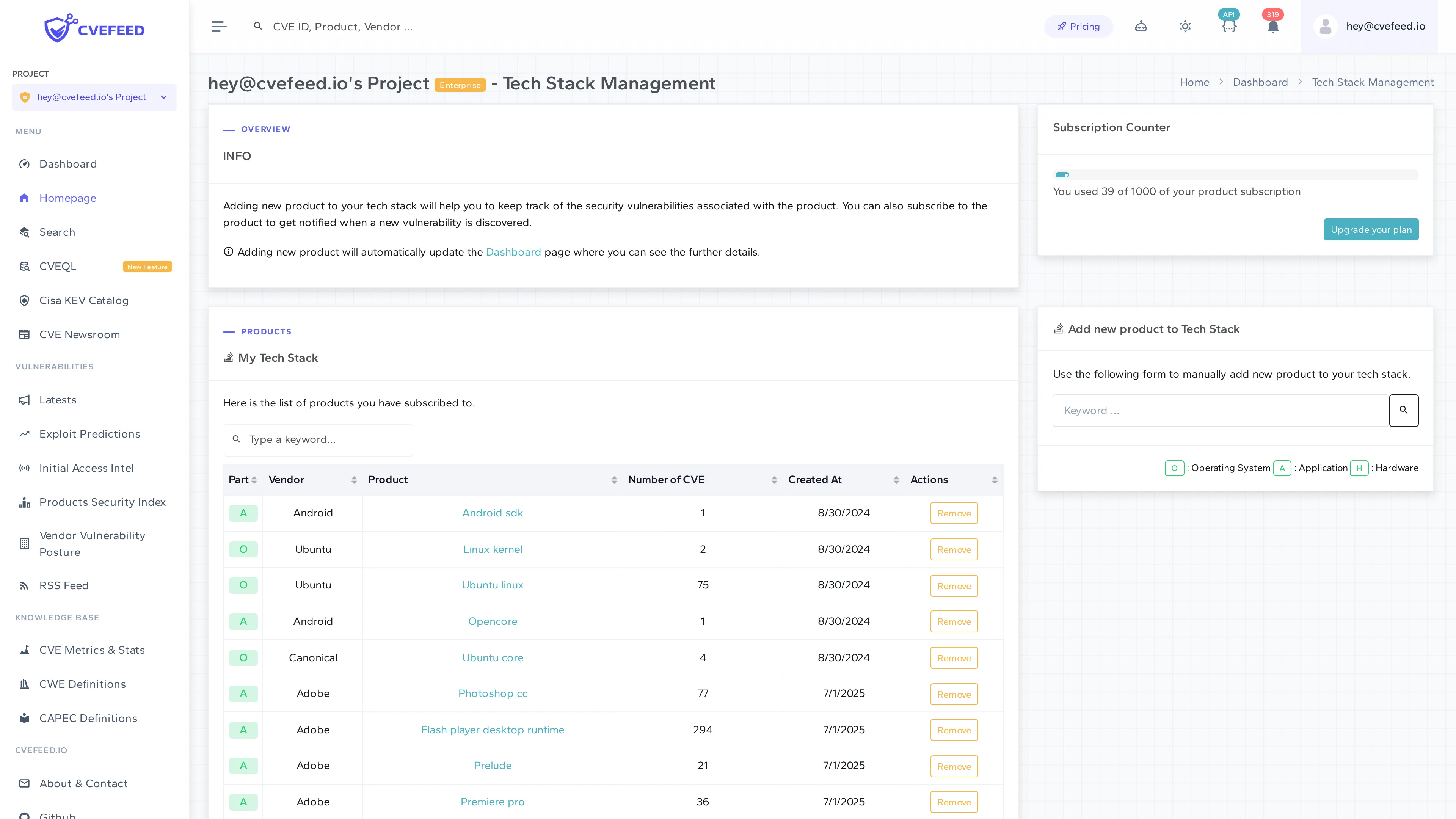
Use the Add new product to Tech Stack search form on the right side:
- Enter a keyword of at least three characters to search by vendor or product name, then press Enter or click the search button.
- Each result row shows the product name, its vendor, its CVE count, and a badge marking it as O (Operating System), A (Application), or H (Hardware).
- Click Add on the row to subscribe. Rows for products already in your Tech Stack show Remove instead.
The My Tech Stack table shows all subscribed products with their Part badge (O/A/H), vendor, product name, number of associated CVEs, and subscription date. Click Remove to unsubscribe from any product.
The Subscription Counter at the top right shows your current usage against your tier limit (e.g., “You used 39 of 1000 of your product subscription”).
2. Vulnerability Detail Page — Affected Products
Section titled “2. Vulnerability Detail Page — Affected Products”When reviewing a specific CVE, the Affected Products section lists every vendor and product impacted. Each row has an action button to add that product to your Tech Stack directly.
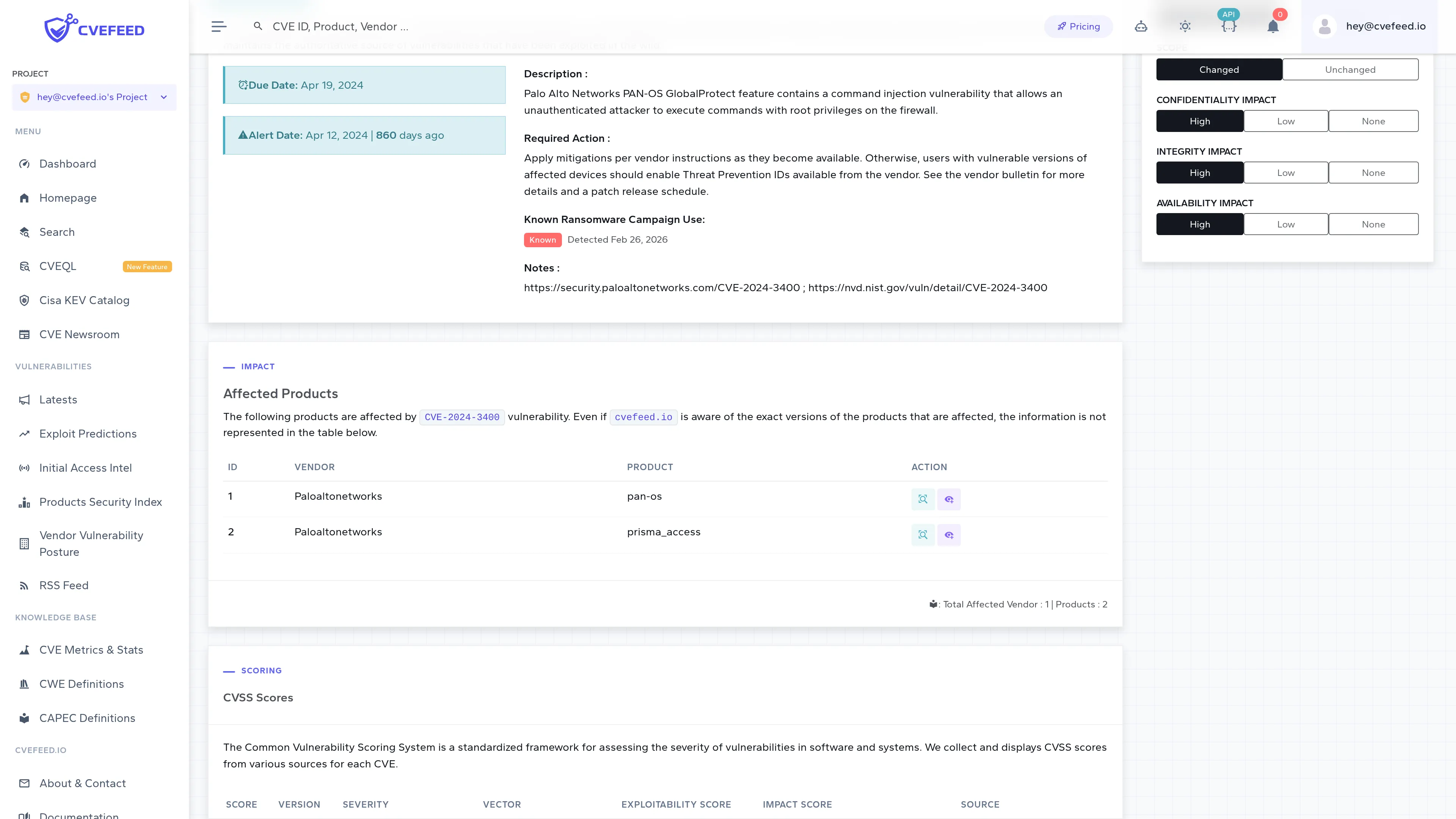
This is the fastest way to subscribe when you’re triaging a vulnerability and realize it affects software in your environment. One click and you’ll be alerted about future CVEs for that product.
3. Product Detail Page
Section titled “3. Product Detail Page”Every product in CVEFeed.io has its own detail page showing vulnerability statistics, severity distribution, EPSS scores, and a chronological list of all CVEs affecting it.
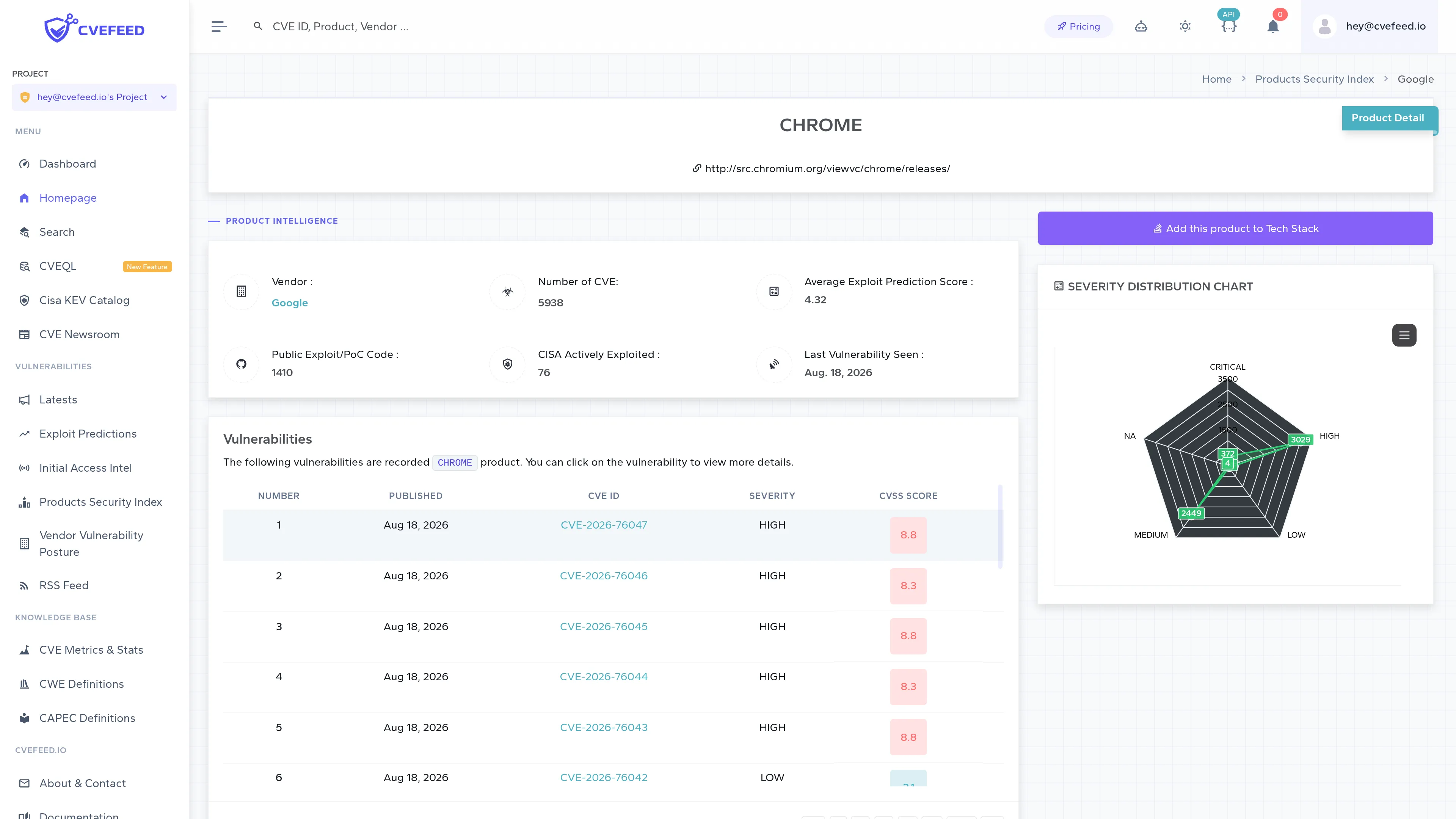
The product detail page shows:
- Product Intelligence — vendor name, total number of CVEs, average EPSS score, public exploit/PoC count, CISA actively exploited count, and the date of the last vulnerability seen.
- Severity Distribution Chart — a radar chart showing the breakdown across Critical, High, Medium, Low, and N/A severities.
- Vulnerabilities table — a paginated list of all CVEs for this product with publication date, CVE ID, severity, and CVSS score.
At the top of the right-hand column, signed-out visitors get a “Login to add this product to Tech Stack” link. Once you’re logged in with an active project, that becomes “Add this product to Tech Stack”, which subscribes you with a single click — the button immediately goes disabled and reads “Added”, and on your next visit to the page it reads “You already subscribed to this product”. The product detail page has no remove control — to unsubscribe, use the Remove button on the Tech Stack Management page, or the remove action on a vendor detail or CVE detail page.
4. Vendor Detail Page
Section titled “4. Vendor Detail Page”Vendor pages provide a high-level view of a vendor’s overall vulnerability posture. From here you can browse all of a vendor’s products and subscribe to individual ones.
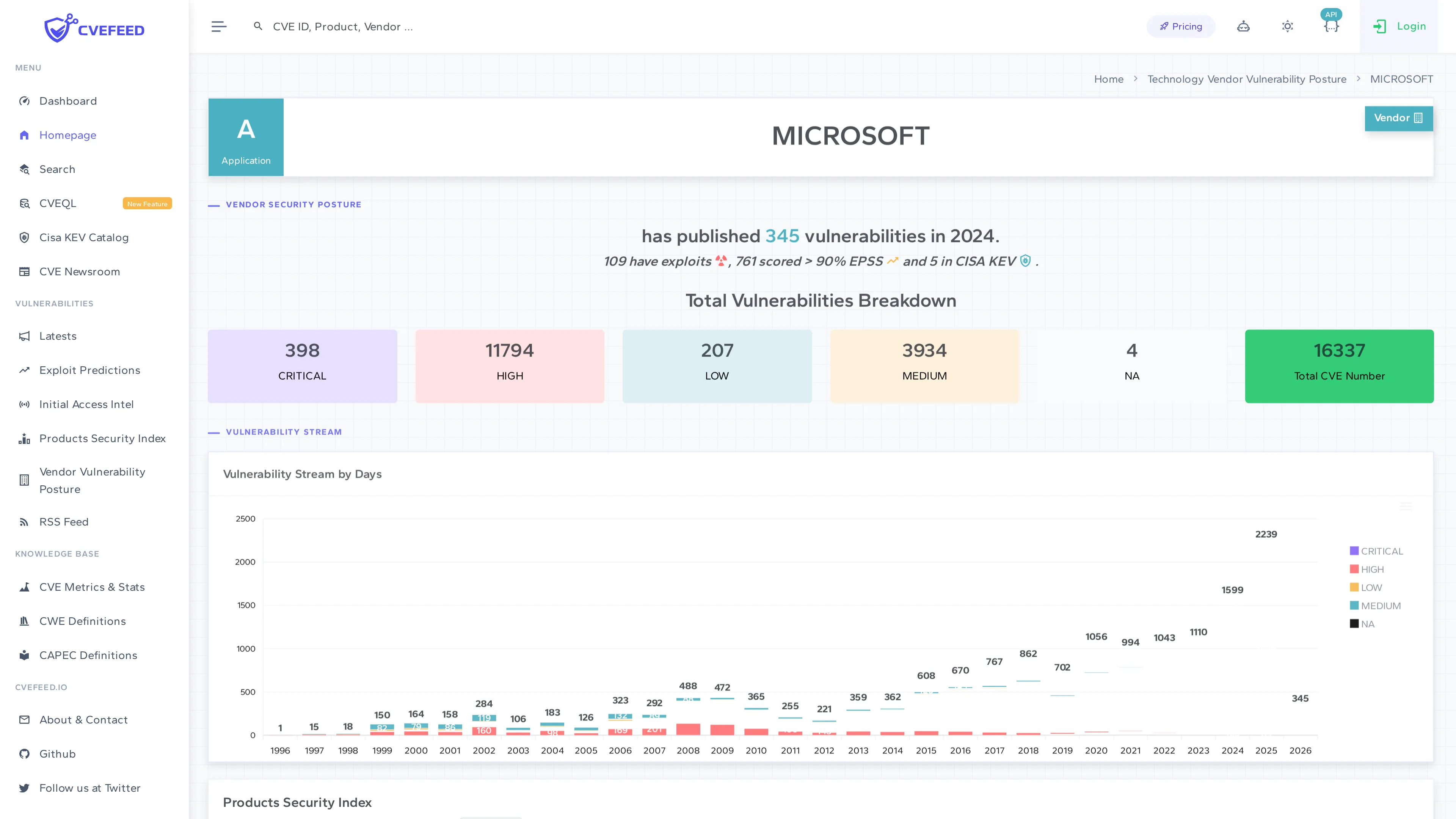
The vendor detail page shows:
- Vendor Security Posture — total vulnerability count for the current year, exploit count, EPSS high-score count, and CISA KEV count.
- Total Vulnerabilities Breakdown — severity distribution across Critical, High, Medium, Low, and N/A.
- Vulnerability Stream by Days — a historical chart showing CVE publication trends over the years.
- Products Security Index — a table listing all of the vendor’s products. Each product row includes action buttons to add or remove it from your Tech Stack.
5. Products Security Index and Vendor Vulnerability Posture
Section titled “5. Products Security Index and Vendor Vulnerability Posture”These are global browsing pages accessible from the sidebar:
- Products Security Index — browse and search all products in the CPE dictionary. Filter by name, by vendor type (application / operating system / hardware), by first letter, or narrow the list to products you already subscribe to. Each product links to its detail page where you can subscribe.
- Vendor Vulnerability Posture — browse all vendors, view their vulnerability statistics, and drill into individual vendor pages.
Tech Stack Dashboard
Section titled “Tech Stack Dashboard”The Tech Stack Dashboard (open the user menu in the top-right corner and choose Dashboard, or follow View dashboard from your Project Dashboard) gives you an overview of your subscribed products’ security status:
- Total subscribed vendors and products.
- Number of CVEs discovered in the last 90 days affecting your stack.
- Known Exploited Vulnerabilities (from CISA KEV) that match your subscriptions — like the counter above it, this card only covers CVEs published in the last 90 days, so an older CVE that was recently added to the KEV catalog does not show up here.
- Subscribed products distribution by vendor (pie chart).
Don’t confuse this page with the Dashboard entry in the left sidebar — that one shows platform-wide CVE statistics rather than anything scoped to your project.