

Team Members
Security is a team effort. CVEFeed.io lets you invite colleagues to your project so everyone has visibility into the vulnerabilities affecting your software stack. Each project maintains its own member list with role-based access control, ensuring that the right people have the right level of access.
Members are scoped to individual projects — being a member of one project doesn’t grant access to another. This makes it safe to create separate projects for different teams, clients, or environments without worrying about information leaking across boundaries.
Understanding Roles
Every project member is assigned one of three roles. Roles determine what actions a member can take within the project:
| Role | What they can do |
|---|---|
| Owner | Full control over the project — manage billing, delete the project, promote/demote members, and everything admins can do. Each project has exactly one owner (the person who created it). |
| Admin | Manage the project’s day-to-day operations — add or remove product subscriptions, configure alert channels and integrations, invite new members, create API tokens, and view activity logs. |
| Member | View-only access to the project’s vulnerability data, subscriptions, and alerts. Members can see what’s being monitored and review incoming CVEs, but can’t change the project’s configuration. |
Choose roles based on responsibility: give Admin access to team leads who need to adjust monitoring, and Member access to developers or analysts who just need to stay informed.
Invite a Team Member
From your project, go to the Members page. You’ll see the current member list, their roles, and any pending invitations.
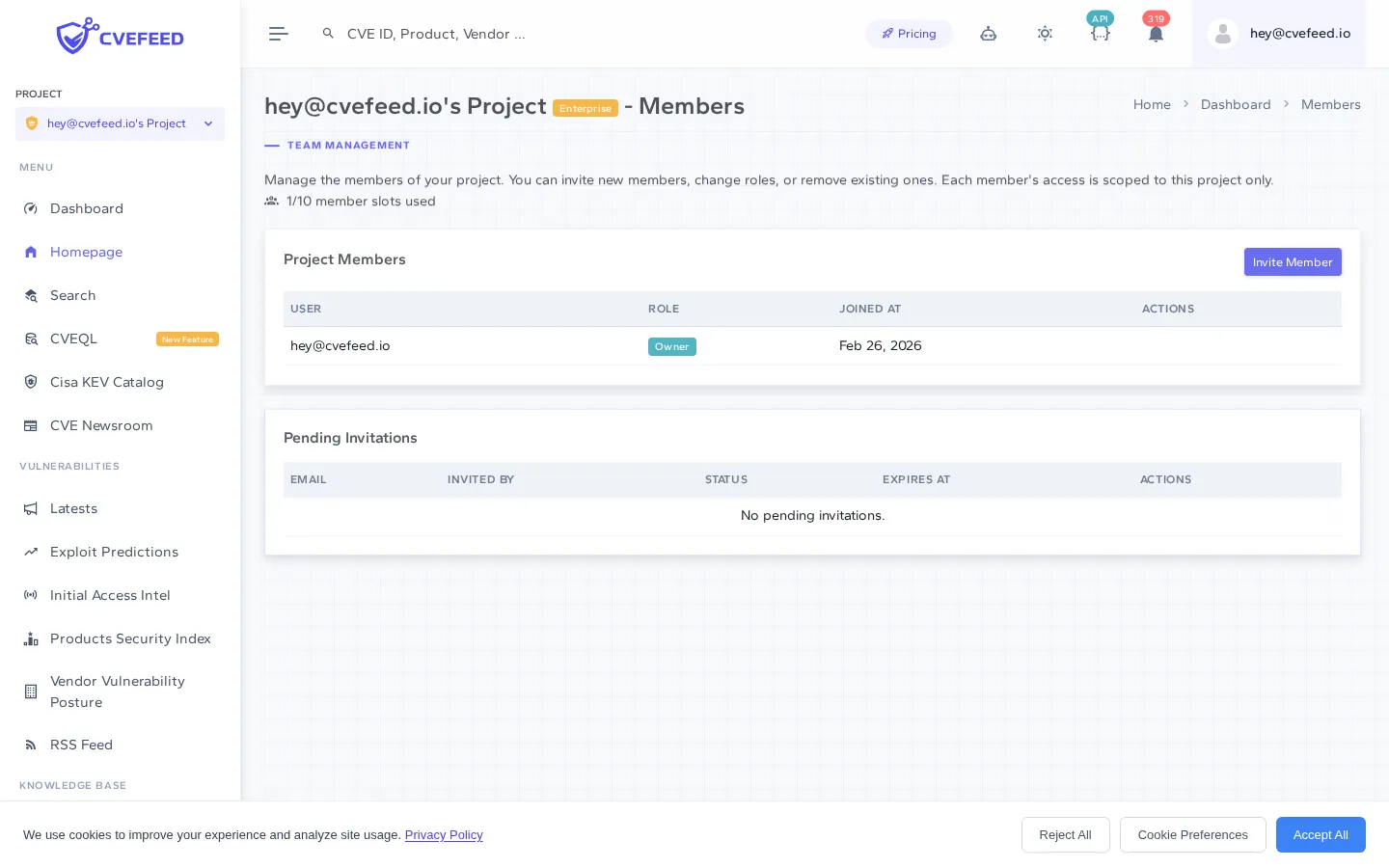
To invite someone:
- Click the Invite Member button in the top right.
- Enter their email address.
- Select a role — Admin or Member.
- Click Send Invitation.
The invited person will receive an email with a link to join the project. If they don’t have a CVEFeed.io account yet, they’ll be prompted to create one first — the invitation will be waiting for them once they sign up.
Pending Invitations
The Pending Invitations section at the bottom of the members page shows all outstanding invitations. From here, admins and owners can see which invitations are still waiting to be accepted and can revoke them if needed.
Invitations expire after a set period. If someone misses the window, simply send a new invitation.
Managing Your Team
As your team evolves, you may need to adjust access:
- Change a role: Owners can promote a member to admin, or demote an admin to member, directly from the members table.
- Remove a member: Owners and admins can remove members who no longer need access. This takes effect immediately — they’ll lose access to the project’s data.
- Transfer ownership: Project ownership cannot be transferred through the UI. If the project owner needs to leave, contact support to arrange the transfer.
Member Limits
Each project has a limited number of member slots determined by the project owner’s subscription tier. This count includes active members, pending invitations, and custom email recipients — all share the same pool.
| Tier | Member slots per project |
|---|---|
| Free | 1 |
| Starter | 3 |
| Pro | 5 |
| Enterprise | 10 |
Next Steps
With your team in place, make sure everyone is getting the right notifications:
- Configure alert channels to deliver vulnerability notifications via email, Slack, webhooks, or other integrations.
- Learn about projects to understand how multi-tenancy and billing work across your team.