

Multi-Factor Authentication
Multi-factor authentication (MFA) adds a second verification step during login, protecting your account even if your password is compromised. CVEFeed.io supports industry-standard authenticator apps and hardware security keys.
Supported Methods
Authenticator App (TOTP)
Time-based one-time password (TOTP) authentication works with any standard authenticator app:
- Google Authenticator
- Microsoft Authenticator
- Authy
- 1Password
- Any TOTP-compatible app
After enabling, you’ll be prompted to enter a 6-digit code from your authenticator app each time you sign in.
Recovery Codes
When you enable MFA, you’ll receive a set of one-time recovery codes. These are backup codes that let you sign in if you lose access to your authenticator device. Each code can only be used once. Store them in a secure location (password manager, printed copy in a safe, etc.).
Setting Up MFA
Navigate to Two-Factor Authentication from your account settings.
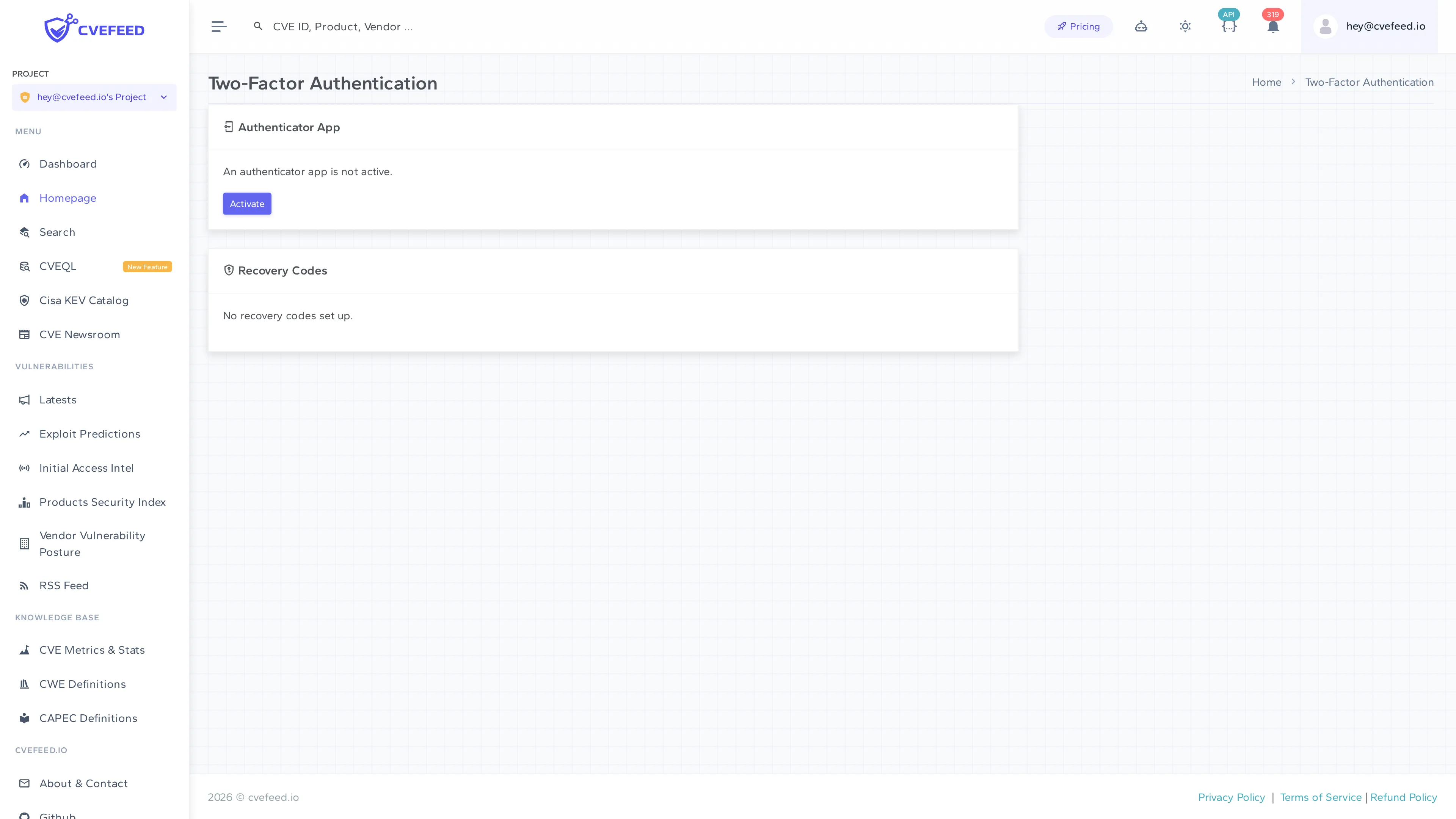
To enable MFA:
- Click Activate under the Authenticator App section.
- Scan the QR code with your authenticator app.
- Enter the 6-digit verification code to confirm the setup.
- Save the recovery codes that are generated.
Availability
MFA setup and management is available on the Enterprise tier. Users on Free, Starter, or Pro tiers will be prompted to upgrade when attempting to access the MFA settings page.
| Tier | MFA Access |
|---|---|
| Free / Starter / Pro | Not available |
| Enterprise | Full MFA management |