
Alerts
Alerts are the core notification mechanism in CVEFeed.io. When a new CVE is published that affects one of your subscribed products, the platform creates an alert and delivers it through every notification channel you’ve configured — email, webhooks, Slack, or Jira.
How Alerts Are Created
Alerts are triggered automatically through the following chain:
- A new CVE is published or updated and linked to a product (via the CPE dictionary).
- CVEFeed.io’s data pipeline detects the new vulnerability-to-product relationship.
- The platform checks all product subscriptions across every project that monitors the affected product.
- For each matching subscription, an alert is created — deduplicated by the combination of project, vulnerability, and product (so you never get duplicate alerts for the same CVE on the same product).
- After the alert is saved, notifications are dispatched to deliver it through all configured channels.
Ransomware Alerts
When a vulnerability’s ransomware status changes to “Known” (confirmed by CISA), a separate ransomware-specific notification is triggered. This delivers through the same channels but with distinct formatting — red color coding in Slack, a dedicated email layout, and an additional “ransomware status changed” indicator in webhook payloads.
Alert Center
The Alert Center shows all alerts for your active project. Each alert displays the CVE ID, the affected product, severity level, and when it was created.
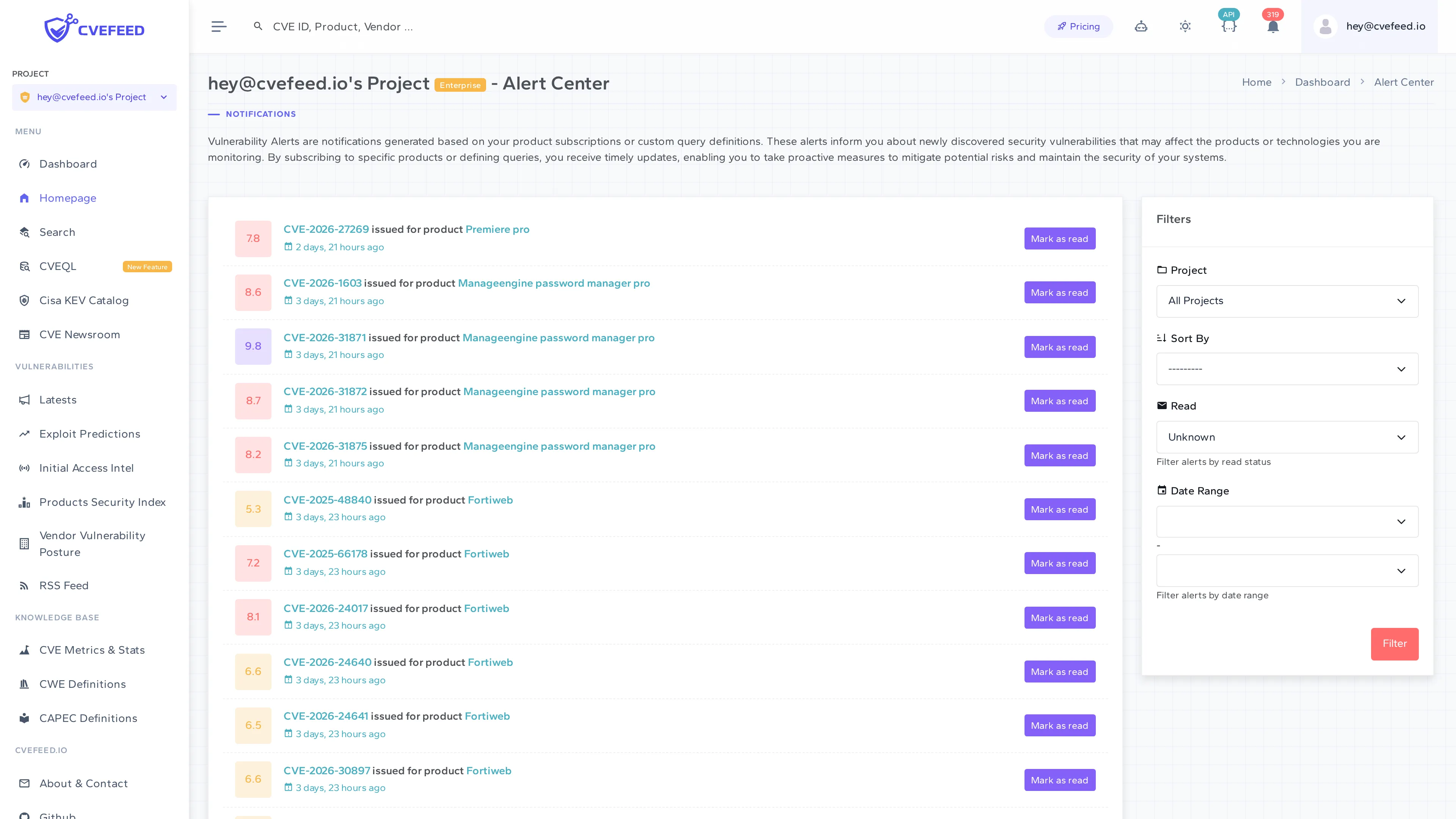
You can filter alerts by:
- Project — view alerts from a specific project or all projects.
- Sort order — sort by date, severity, or read status.
- Read status — filter by read or unread alerts.
- Date range — narrow down to a specific time period.
Marking Alerts as Read
Click Mark as Read on individual alerts to track which vulnerabilities you’ve already reviewed. This is also available via the API (POST /api/projects/{project_id}/alerts/{alert_id}/mark-as-read/).
Notification Channels
Each channel is gated by the project owner’s subscription tier. If a channel’s feature is not enabled for the owner’s tier, notifications won’t be sent through it even if configured.
Available on all tiers. Email notifications are sent to verified project email recipients. Each project can have email recipients that are either project members or custom external email addresses.
- Delivery is deduplicated — the same alert is never sent twice to the same email address.
- Email recipients (including custom addresses) count toward the project’s member slot limit.
- Each email includes CVE details, severity, affected product information, and direct links to the vulnerability page.
Webhooks
Available on Pro and Enterprise tiers. Each project can configure one webhook endpoint that receives HTTP POST requests when new alerts are created.
- Payload formats: Generic JSON or Microsoft Teams Adaptive Card.
- Signing: Each endpoint is assigned a unique signing secret, sent in the
X-Webhook-Secretheader so you can verify the payload’s authenticity. - Delivery logs: Every delivery attempt is logged with response status, body, and timing.
- Retries: Failed deliveries are retried up to 5 times with 60-second delays.
Slack
Available on Enterprise tier. Connect your Slack workspace via OAuth and receive alerts posted to a channel.
- Alerts include severity-coded attachments (color-coded by severity level).
- Messages include CVE details, CVSS score, and action buttons to view the CVE or product.
- Failed deliveries are retried up to 3 times.
Jira
Available on Pro and Enterprise tiers. Connect via Jira Forge to automatically create issues when new vulnerabilities are detected.
- Configured with your Jira instance URL, project key, issue type, and labels.
- You can enable or disable automatic issue creation from the Jira Forge app settings.
- All delivery attempts are logged for audit purposes.
- Failed deliveries are retried up to 3 times.
Microsoft Teams
Available on Enterprise tier. Teams notifications are delivered through the webhook endpoint using the Adaptive Card payload format.
- Card includes: title, description, facts (vendor, product, CVE, CVSS, severity), and action buttons.
- Configure by setting your webhook endpoint’s payload format to “Microsoft Adaptive Card”.
Alert API
Alerts are accessible via the API for programmatic access:
GET /api/projects/{project_id}/alerts/— list alerts with filtering and pagination.POST /api/projects/{project_id}/alerts/{alert_id}/mark-as-read/— mark an alert as read.
Requires a token with the alerts scope.